


Implement Microsoft Entra Terms of Use (ToU) with Conditional Access

Microsoft Entra Terms of Use (ToU) provides a practical way to present legal, compliance, privacy, or acceptable-use notices before users access protected resources. Combined with Conditional Access, it turns a static PDF into an enforceable access requirement with acceptance records and reporting.
This tutorial converts a tested lab workflow into a reusable implementation guide. You will create a ToU policy, target a pilot user, verify the sign-in experience, inspect acceptance reporting, and understand how to maintain later versions safely.
Contents
1.0 What You Will Build
The finished solution has two connected objects: a Terms of Use policy containing the user-facing PDF and settings, and a Conditional Access policy that determines who must accept it and which resources are protected.
Publish a PDF notice with a clear display name.
Require users to open the notice before accepting it.
Apply the requirement to a controlled pilot user or group.
Protect the intended resources through Conditional Access.
Review accepted and declined records and download consent data.
1.1 Why this pattern matters
Organizations often need evidence that users were shown a policy before access was granted. Entra ToU adds an auditable acknowledgment step to authentication while Conditional Access supplies the targeting and enforcement boundary.
2.0 Prerequisites and Safety Controls
Prepare the following before configuration:
An account with sufficient Microsoft Entra and Conditional Access permissions.
A finalized PDF containing the legal or compliance text.
A test user, such as a dedicated pilot account, that can complete multifactor authentication.
A supported license for the relevant Microsoft Entra features.
A recovery administrator account that is excluded from the pilot policy.
2.1 Avoid administrator lockout
Important: Do not begin by targeting every user. Exclude emergency access accounts and service identities, start with a small pilot group, and confirm that an administrator can disable or modify the policy if the sign-in experience is not as expected.
2.2 Decide the policy behavior
Setting | Lab choice | Alternatives | Guidance |
Require expansion | On | On | Off | Use On when users should open the document before acceptance. |
Consent per device | Off | On | Off | On can require device registration; validate the experience before broad rollout. |
Expire consents | Optional | On | Off | Use a schedule when policy acceptance must be renewed periodically. |
Reacceptance duration | Optional | Number of days | Creates a user-relative renewal cycle based on the last acceptance. |
Conditional Access | Custom policy | Template | Custom | Later | Custom targeting is best for a controlled pilot. |
3.0 Create the Terms of Use Policy
3.1 Open Terms of Use
1. Sign in to the Microsoft Entra admin center at https://entra.microsoft.com.
2. Open Identity Governance, then navigate to Terms of use.
3. Select New terms.

3.2 Configure the document and user experience
Enter an internal name, for example Testing terms of use.
Upload the finalized PDF.
Select the document language. Add localized versions when your audience requires them.
Enter a user-facing display name, for example Contoso Terms of Use.
Set Require users to expand the terms of use to On if opening the document is mandatory.
Choose whether consent is required on every device.
Configure expiration or a reacceptance duration only when recurring acknowledgment is required.
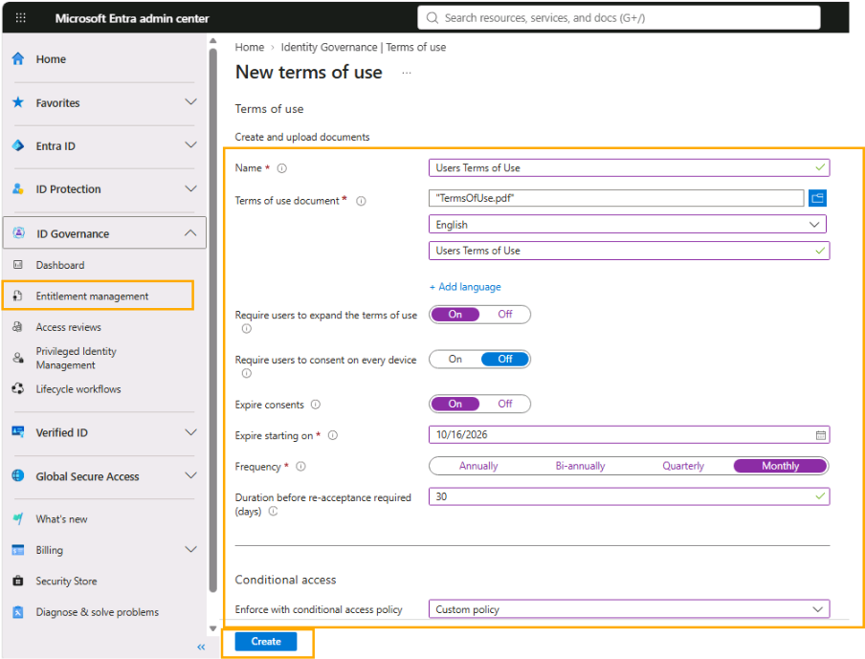
3.3 Select the enforcement path
Choose Custom policy to control the users, groups, and resources in scope. Select Create after reviewing the values. Entra then opens the Conditional Access policy experience.
4.0 Build the Conditional Access Policy
Name the policy clearly, such as Enforce ToU - Pilot.
Under Users or workload identities, include only the pilot user or group.
Under Target resources, select the required resources. A lab can use All resources, but production scope should follow your access design.
Under Grant, select the Terms of Use control you created.
Review exclusions for emergency access and non-interactive identities.
Set the policy to On for the pilot and select Create.

Figure 3. Limit the initial Conditional Access assignment to the selected pilot user or group.

Figure 4. Select the resources protected by the ToU policy; the lab example uses All resources.

Figure 5. Review the complete pilot policy, set Enable policy to On, and select Create.
Production recommendation: Evaluate impact, review sign-in logs, and move from pilot to wider groups in stages. Do not use service accounts as test identities for a user-interactive ToU flow.
5.0 Validate the End-User Experience
Open a new InPrivate or incognito browser session.
Sign in to the protected resource as the pilot user.
Complete multifactor authentication when prompted.
Confirm that the Terms of Use page appears and that the PDF can be opened and read.
Select Accept and verify that access continues.
Repeat the test with Decline if you need to confirm that access is blocked and the user is prompted again later.

Figure 6. The pilot user reviews the document, then selects Accept or Decline.
Policy propagation can take several minutes. If the prompt does not appear immediately, sign out fully, close the private session, and retry after a short interval.
6.0 Review Acceptance and Audit Evidence
Return to Identity Governance and open Terms of use.
Use the Accepted or Declined count for the policy to open the current user state.
On the consent details page, select Download when a report is required.
Select the ToU policy and open its audit logs to review administrative activity.

Figure 7. Use the Accepted or Declined count to open the corresponding consent records.

Figure 8. Filter consent records by policy, decision, or version, then use Download when evidence is required.
Acceptance and decline records support operational verification, but retention, evidence handling, and legal sufficiency should follow your organization’s compliance and records-management requirements.
6.1 What to verify
The correct user appears in the expected state.
The policy name and document version match the tested configuration.
The Conditional Access policy applies to the intended resource.
Unexpected failures are correlated with sign-in and audit events.
7.0 Maintain and Update the Policy
7.1 Edit policy details
Select the ToU policy and choose Edit terms. You can update details such as the internal name, display name, expansion requirement, and language options. Settings that materially change device consent, expiration, or Conditional Access scope may require a new design or policy rather than a simple metadata edit.
7.2 Upload a new document version
Open Edit terms.
In Language options, locate the language version and select Update.
Upload the replacement PDF.
Enable Require reaccept when every in-scope user must acknowledge the new version at the next sign-in.
Select Add, save the change, and validate with the pilot account.
If reacceptance is not required, previously recorded consent remains current; the updated document is mainly presented to new users or users whose consent later expires.
8.0 Troubleshooting
Symptom | Likely cause | Check | Recommended action |
No ToU prompt | Policy not yet applied | Scope | propagation | prior consent | Confirm user and resource targeting, then retry in a fresh private session. |
User is locked out | Over-broad scope | Admin inclusion | missing exclusion | Use the recovery administrator to adjust or disable the pilot policy. |
Grant control is missing | ToU not created or saved | Policy status | tenant licensing | Verify that the ToU exists and that the tenant supports the required feature. |
New PDF is not shown | Old session or no reaccept | Version | session | toggle | Confirm the latest language version and test after a complete sign-out. |
Report has no users | No completed decision | Prompt | accept | decline | Complete the end-user flow and allow time for reporting data to appear. |
9.0 Key Takeaways
Microsoft Entra Terms of Use is most effective when it is treated as an identity control rather than merely a document upload. The ToU policy defines what users see; Conditional Access defines who sees it and when; reporting provides operational evidence; and disciplined version management keeps acknowledgment aligned with the current document.
For a safe implementation, begin with a pilot, protect administrative recovery paths, test both acceptance and decline, verify reporting, and expand scope only after the complete user journey behaves as intended.
9.1 Hands-on outcome
After completing this guide, you should be able to publish a Terms of Use document, enforce it through Conditional Access, validate the sign-in prompt, review user decisions, and update the policy without losing control of the rollout.


Comments